OBS Basics
You can download OBS for free here. (Note that I use a Mac so your version might look different.)
If you don't want to install anything, you can also record your screen as you play a video and pause it on the relevant sections, and make a separate voice recording of your commentary. OBS just simplifies it so you can record both your screen (and the computer audio) AND pick up whatever you say into your computer mic.
Example video created with OBS + Capcut-made captions: https://pixeldrain.com/u/DV6UVQvD
Basic Interface
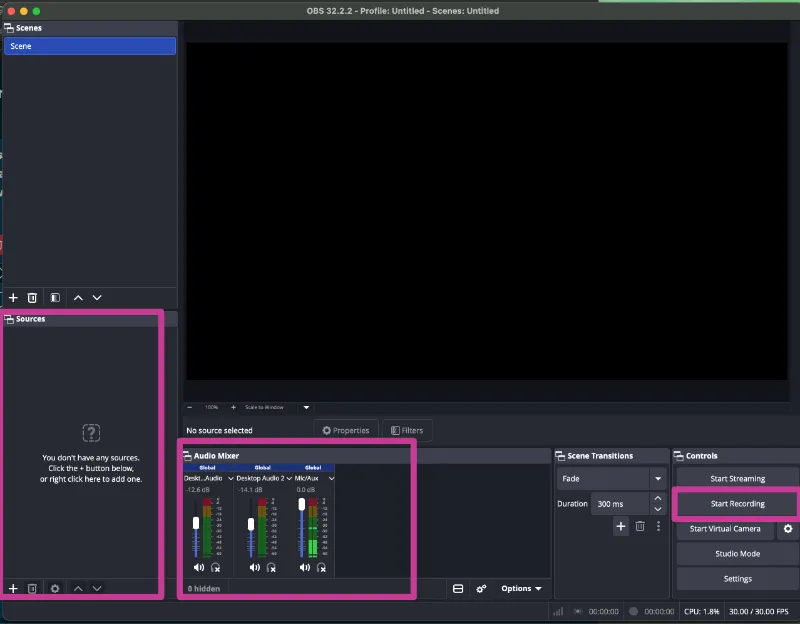
OBS interface (Mac version)
1. Audio Mixer
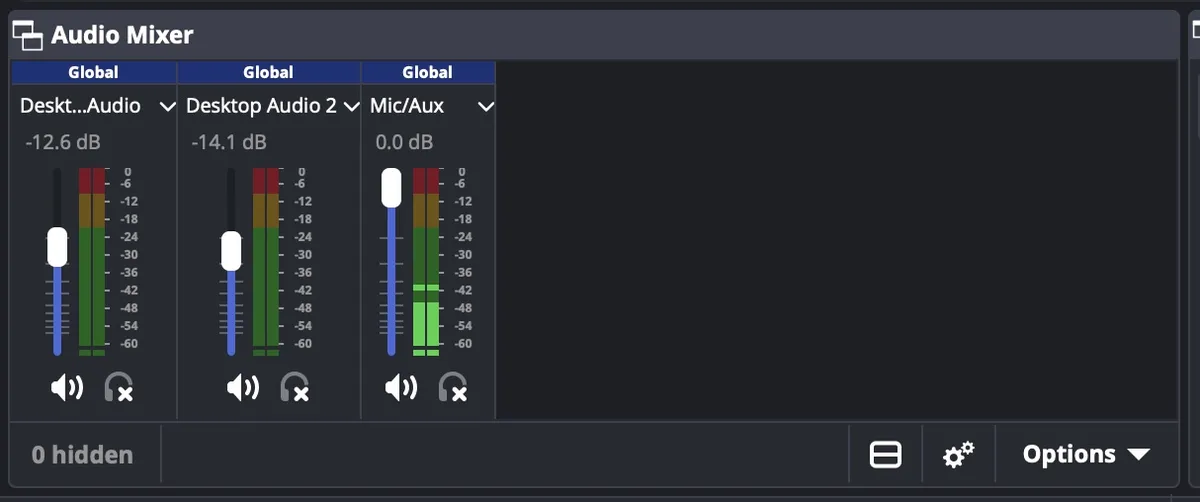
Audio panel
You should be able to see your audio input (mic) and output (computer/system audio) here!
You can play around with the volume, eg. lower the computer volume and increase your mic volume.
You can check if your mic is working if the corresponding meter is lighting up.
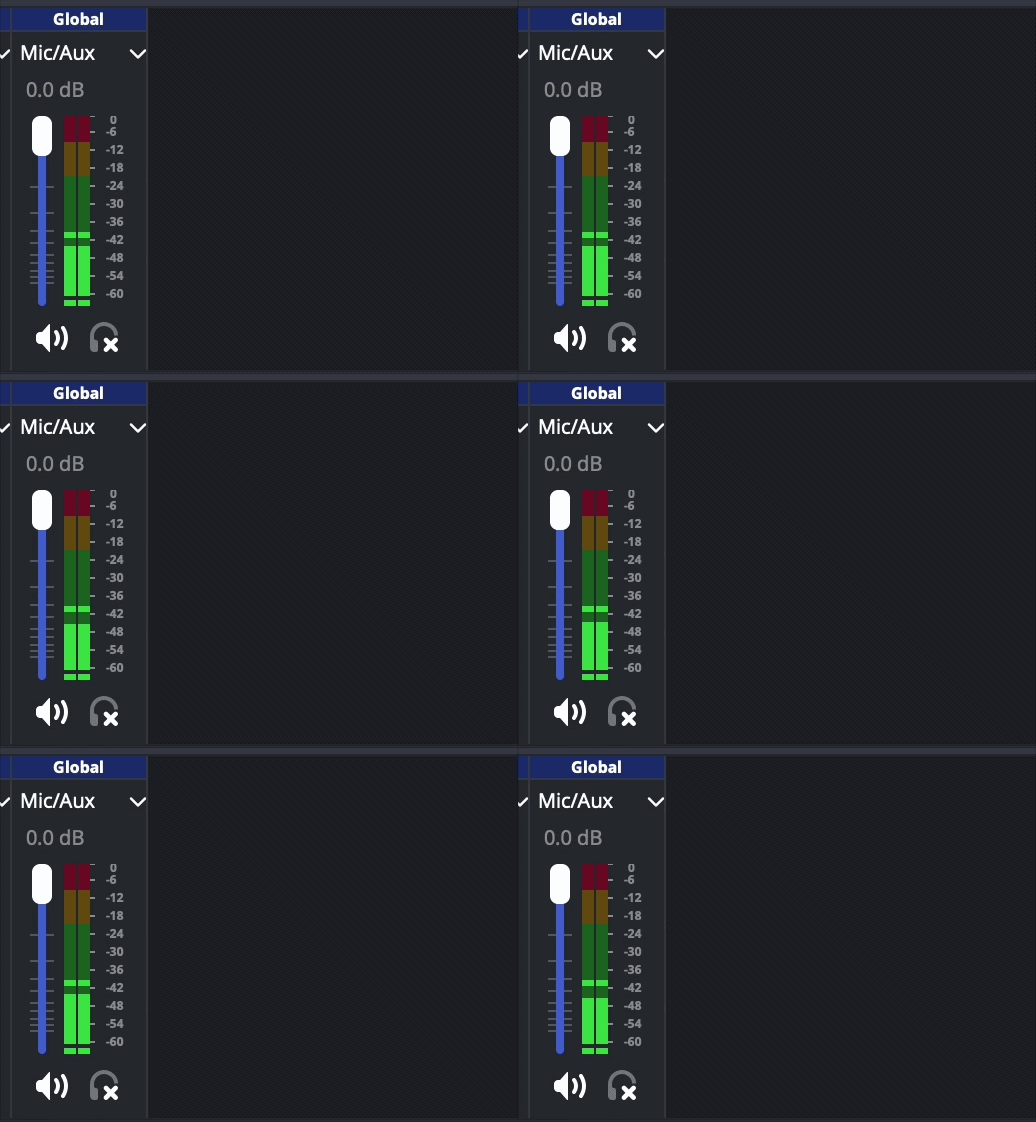
My mic is just picking up ambient sound
If the audio panel is empty, you can add sources in the Sources panel (audio input capture, computer audio capture). I think. Lol.
2. Sources
To load up your video, you need to add a source.
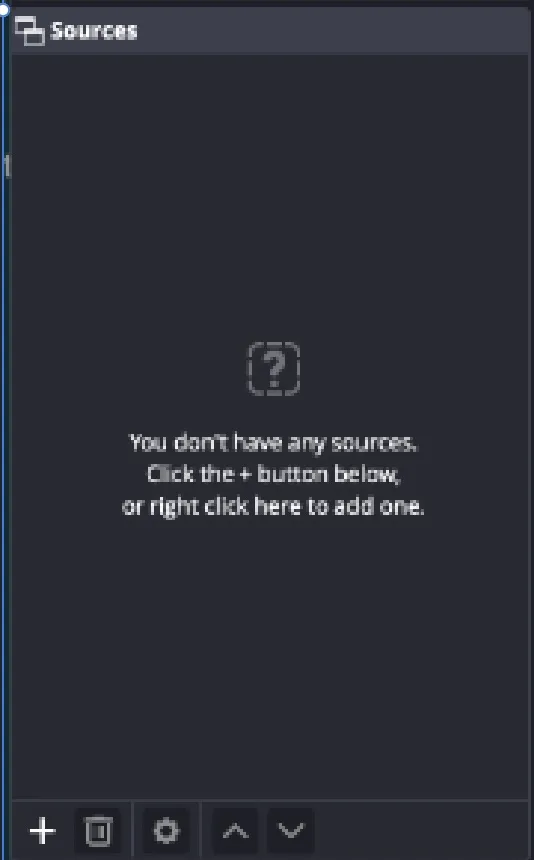
Click the + button OR right-click on the source panel.
Select MEDIA if you want to open a locally downloaded file, or BROWSER if you prefer to stream through a website (eg. Youtube).
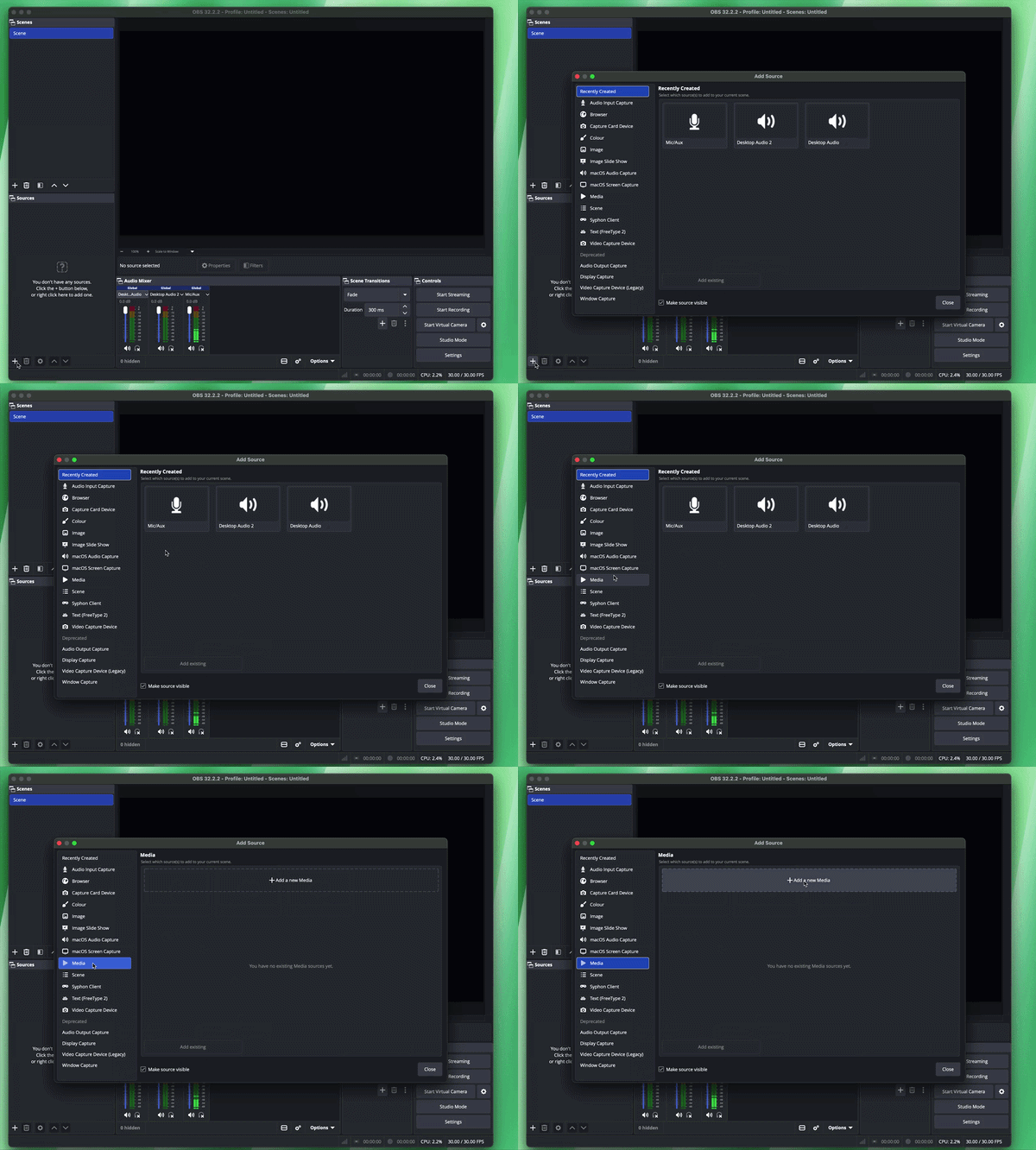
MEDIA: Choose a local file from your device (you can download videos with a tool like Cobalt)
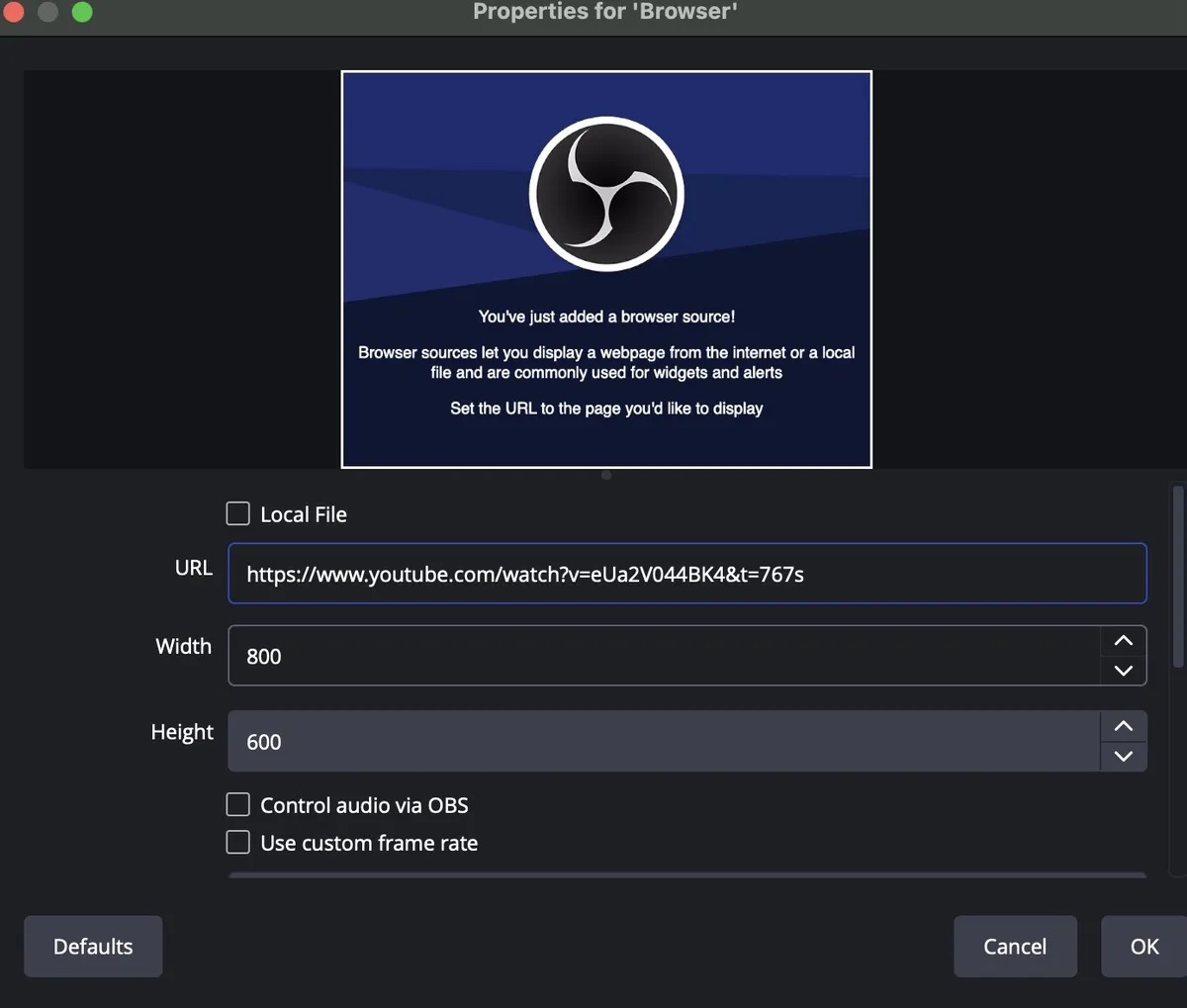
BROWSER: Type the URL
Now you're ready to record!
Recording
For reference, I'm loading up a locally downloaded file of The Lovers. Steps: Add Sources > MEDIA > Select The Lovers file
All you have to do is hit the Start Recording button!
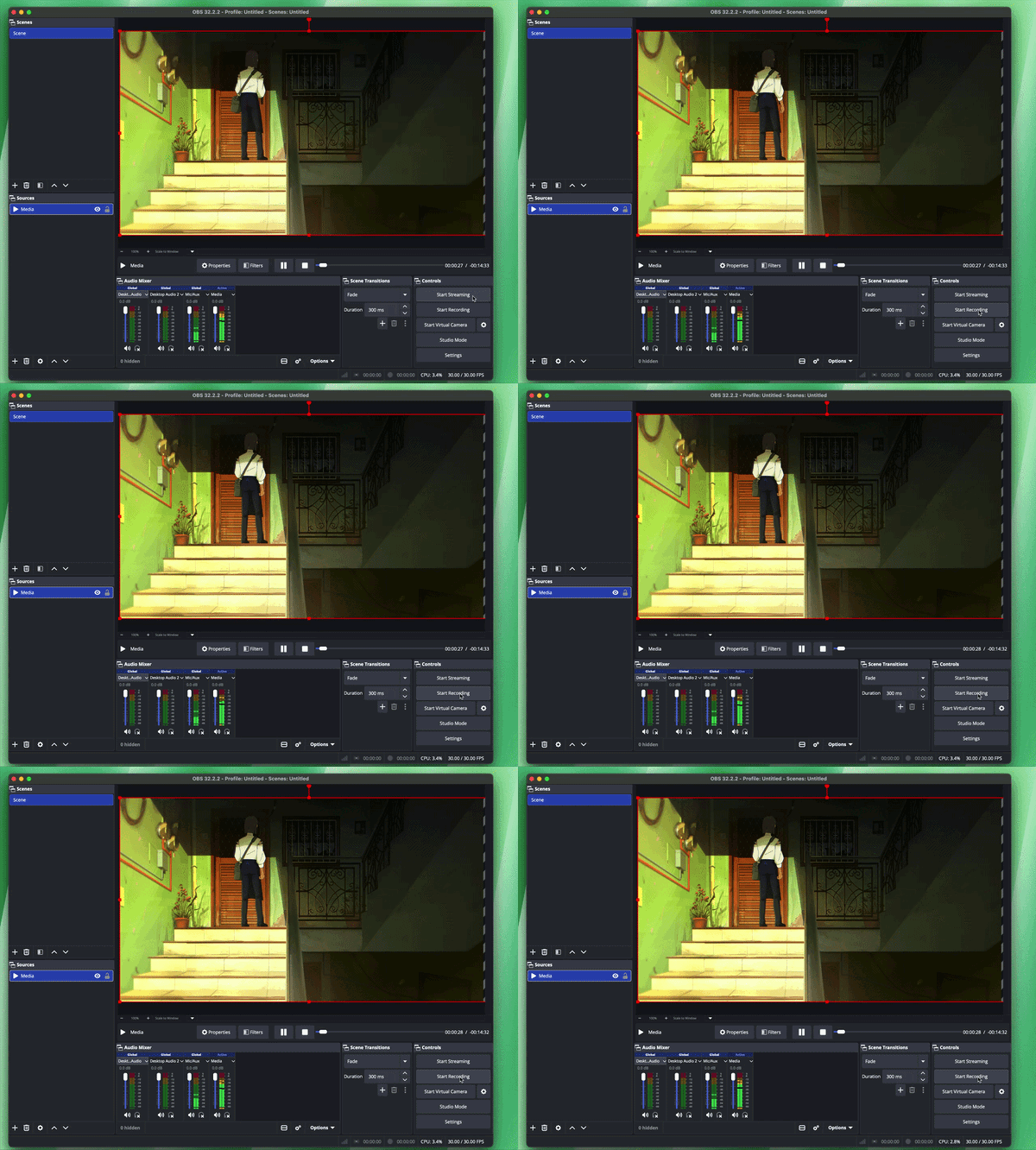
For your scenario, you will want to: pause the video at 0:00 > speak > play the part you want to talk about > pause the video > speak > play the video again > pause > speak. And so forth.
The voice recording doesn't have to be perfect, you can edit and trim out your mistakes after. If the volume is imbalanced, you can also artificially increase/decrease the volume of various sections during editing.
Once you're done, hit the Stop Recording button. You should see the path to your saved file at the bottom of the screen.
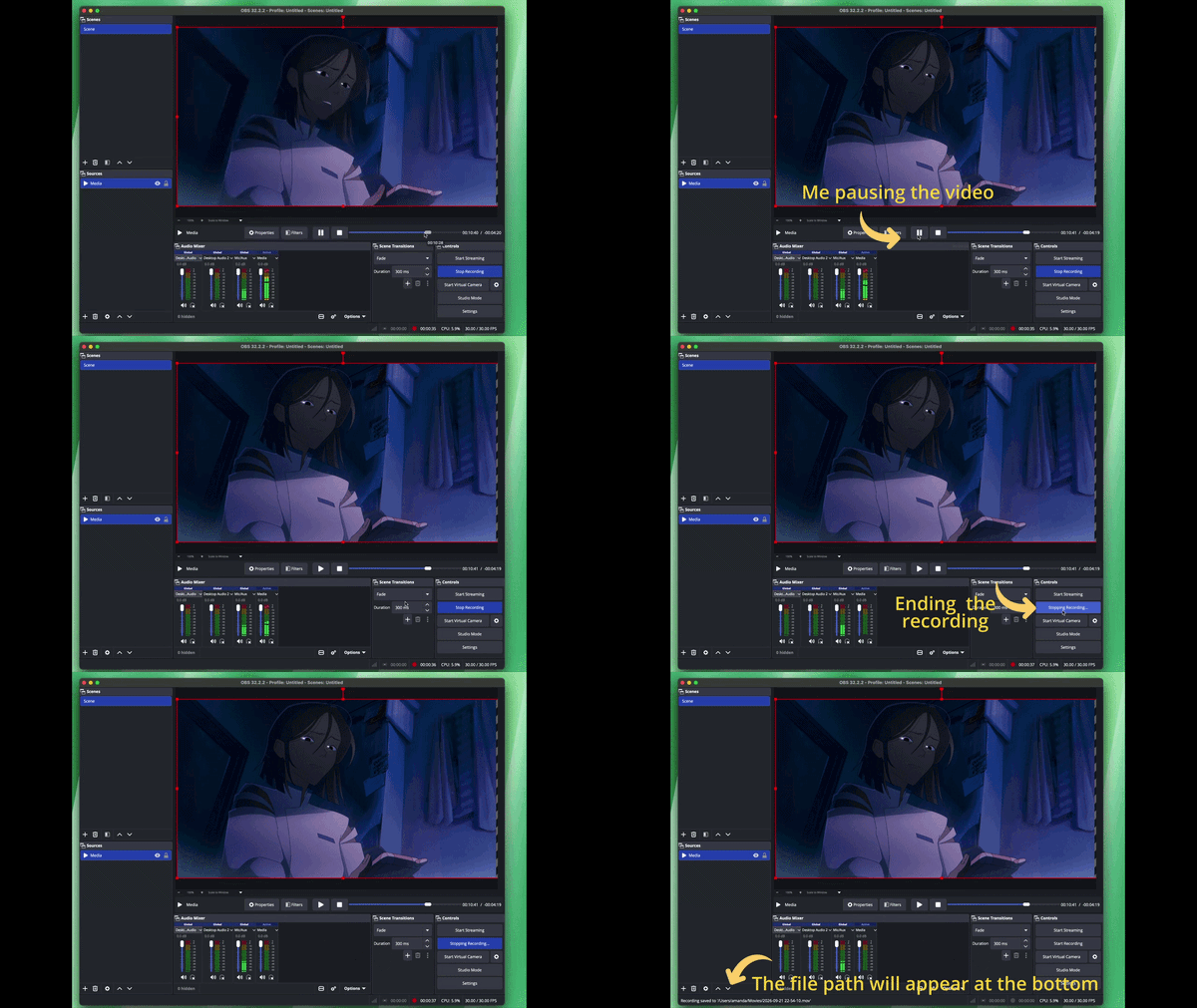
Stop the recording to save your finished video